
Download Zotero – Free Research Management Tool & Bibliography Software
Overview – Why Zotero Is the Go‑to Research Companion
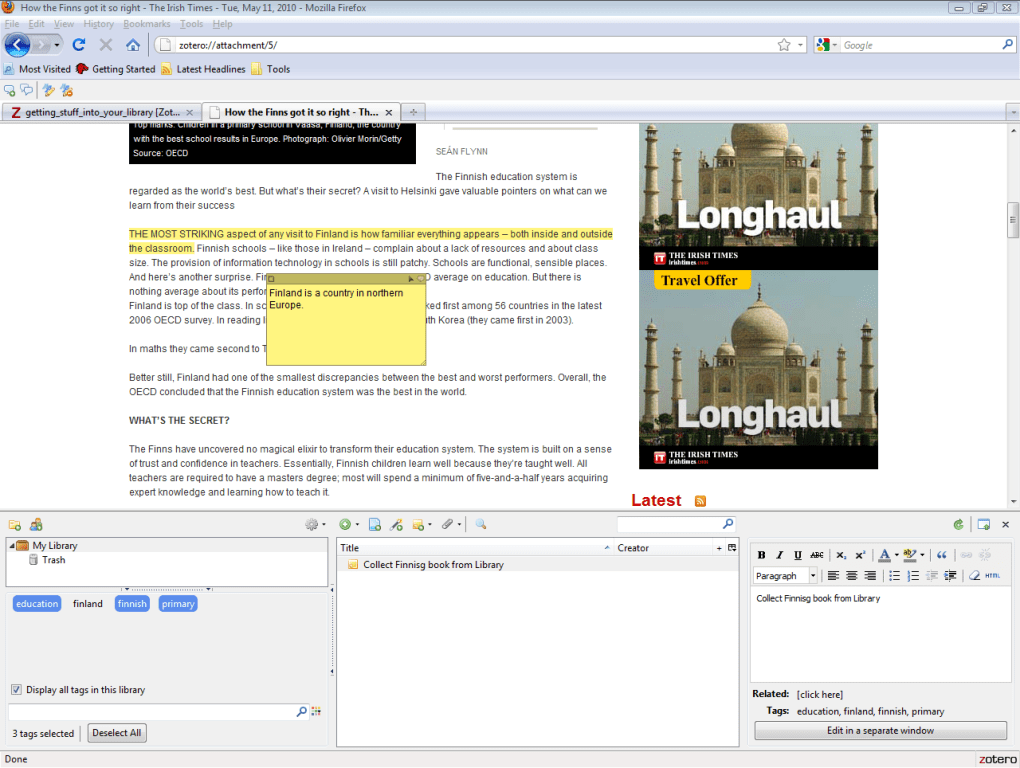
Zotero is a free, open‑source reference manager that lives inside your web browser, most commonly as a Firefox add‑on but also available as a standalone application for Windows, macOS, and Linux. Designed for students, academics, journalists, and anyone who needs to capture, organize, and cite digital sources, Zotero transforms the chaotic process of research into a streamlined workflow. Once installed, the Zotero icon appears in the lower‑right corner of your browser, offering instant access to a compact window that can be resized, docked, or toggled with a hotkey of your choosing. The tool automatically detects bibliographic information on webpages, PDFs, and library catalogs, allowing you to save a reference with a single click. From there, you can attach notes, tags, snapshots, and full‑text PDFs, creating a rich, searchable library of sources.
While the learning curve may feel steep at first, Zotero’s power lies in its flexibility. You can generate citations in thousands of styles (APA, MLA, Chicago, Vancouver, etc.), build bibliography sections on the fly, and even share collections with collaborators through group libraries. The platform also syncs across devices, ensuring that your research library is always up‑to‑date, whether you’re working on a desktop in the library or a laptop in a coffee shop. Recent updates have fixed the infamous “spinning sync icon,” improved CSL (Citation Style Language) compatibility, and added better date parsing for non‑US locales—making Zotero more reliable for an international audience.
In short, Zotero is more than a simple browser extension; it’s a full‑featured research ecosystem that keeps your sources organized, your citations accurate, and your workflow efficient. Whether you’re drafting a term paper, preparing a grant proposal, or curating a personal knowledge base, Zotero offers a secure, free, and constantly evolving solution for managing bibliographic data.
Key Features That Set Zotero Apart
- One‑click capture of bibliographic metadata from webpages, library catalogs, and databases.
- Automatic PDF download and attachment to the corresponding reference.
- Powerful tagging and collection system for hierarchical organization.
- Built‑in note editor for annotations, highlights, and personal comments.
- Support for thousands of citation styles via CSL, with easy style switching.
- Group libraries for collaborative research and shared bibliographies.
- Cloud sync across multiple devices (Windows, macOS, Linux, iOS, Android via third‑party apps).
- Word processor plugins for Microsoft Word, LibreOffice, and Google Docs to insert citations on the fly.
- Extensible architecture with a rich ecosystem of plugins (e.g., ZotFile for PDF management, Better BibTeX for LaTeX users).
- Secure data handling with optional encrypted storage for sensitive research material.
Installation & Usage – Getting Started in Minutes
Installing Zotero is straightforward. For Firefox users, simply visit the official download page and click “Add to Firefox.” The add‑on will download, and after a quick browser restart, the Zotero icon appears in the toolbar. If you prefer a standalone version (useful for Chrome, Edge, or Safari users), download the appropriate installer for Windows, macOS, or Linux, run it, and follow the on‑screen prompts. The installer also offers to create a desktop shortcut and configure automatic updates, ensuring you always have the latest security patches.
Once installed, launch Zotero by clicking the toolbar icon or the desktop shortcut. The first time you open the app, you’ll be prompted to create a free Zotero account—this is optional but recommended for cloud sync. After signing in, you can start adding sources. While browsing a journal article, look for the Zotero “Save to Zotero” button in the address bar; clicking it saves the citation, PDF, and a snapshot of the page. For sources that Zotero cannot automatically detect, you can manually add an item by selecting the green “New Item” button and filling out the bibliographic fields.
Organizing your library is as simple as dragging items into collections (folders) or applying tags. Use the search bar at the top to locate references by author, title, or keyword. To generate a bibliography, select the desired items, right‑click, and choose “Create Bibliography.” Pick your citation style, output format (copy to clipboard, save as RTF, or export as HTML), and Zotero does the rest. When writing in Word or LibreOffice, the Zotero plugin adds a toolbar that lets you insert citations, edit them, and automatically build a reference list at the end of your document. The workflow is designed to keep you focused on research, not on formatting.
Compatibility & Performance – Works Across Platforms
Zotero is built to run on all major operating systems. The standalone application supports Windows 10/11 (64‑bit), macOS 10.14 and newer, and most Linux distributions with a graphical desktop. For mobile users, while there is no official iOS/Android app, third‑party solutions such as ZoteroBib and ZotFile enable sync and note‑taking on smartphones and tablets. Browser compatibility extends beyond Firefox; Chrome, Edge, and Safari users can install Zotero Connector extensions that communicate with the desktop app, providing the same one‑click capture experience.
Performance-wise, Zotero is lightweight. The core add‑on occupies only a few megabytes of RAM, and the library database is stored locally in an SQLite file, which scales efficiently even for libraries with tens of thousands of items. Sync operations are incremental, sending only changed records to Zotero’s cloud servers, which minimizes bandwidth usage. Recent updates have addressed sync‑related bugs that caused the “spinning sync icon,” ensuring a smoother background process. Additionally, Zotero now parses month/year dates correctly on non‑US locales, a boon for international researchers dealing with diverse citation formats.
Security is another strong point. All data transmitted between your device and Zotero’s servers is encrypted via HTTPS, and the optional encrypted storage feature keeps sensitive PDFs locked with a master password. Because Zotero is open‑source, the code is publicly auditable, and community contributors regularly patch vulnerabilities. In short, whether you’re on a university lab PC, a personal MacBook, or a shared Linux workstation, Zotero delivers a reliable, secure, and fast reference management experience.
Conclusion – Pros, Cons, FAQ, and Your Next Steps
Pros
- Completely free and open‑source, with no hidden fees.
- Seamless browser integration for one‑click source capture.
- Extensive citation style library and easy style switching.
- Robust sync across devices and collaborative group libraries.
- Rich plugin ecosystem for advanced PDF handling and LaTeX support.
Cons
- Initial learning curve can be steep for first‑time users.
- No official native mobile app (reliance on third‑party solutions).
- Desktop client requires occasional manual updates for optimal performance.
- Large libraries may need periodic database maintenance to stay fast.
- Advanced features sometimes require additional plugins, adding complexity.
Frequently Asked Questions
Is Zotero really free, or are there hidden costs?
Zotero is completely free to download and use. The core application, browser connectors, and most plugins are open‑source. Zotero offers optional paid storage plans for users who need more than the free 300 MB of cloud sync space, but the software itself never requires a license fee.
Can I use Zotero on a Mac or Linux machine?
Yes. Zotero provides standalone installers for macOS and Linux, and the browser connectors work across all major browsers on these platforms. The experience is identical to the Windows version.
How does Zotero handle PDF organization?
When you save a reference that includes a PDF, Zotero automatically attaches the file to the item. You can rename, move, or extract PDFs using the ZotFile plugin, which also allows you to sync PDFs to mobile devices and rename them based on metadata.
Is Zotero compatible with Microsoft Word and Google Docs?
Yes. Zotero offers official plugins for Microsoft Word and LibreOffice that add a citation toolbar. For Google Docs, a web‑based plugin lets you insert citations directly from your library without leaving the document.
What should I do if my sync icon keeps spinning?
Recent updates have fixed the persistent‑spinning bug. If you still encounter it, try restarting Zotero, checking your internet connection, and ensuring you’re using the latest version of the desktop client and browser connector.
Ready to take control of your research workflow? Download Zotero today and start building a smarter, more organized bibliography – all for free.







